1) Login to your cPanel control panel:
- http://YOURDOMAIN.COM:8443
2) Click on "Website & Domains"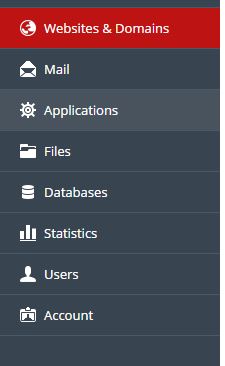
3) Click on SSL Certificates
4) Click on "Add SSL Certificate"
5) Enter the following information and click "Request":
- Certificate name - Name of the certificate you want to install
- Country - The country on which your organisation is located.
- State or province - The state in which your organization is located. Do not use an abbreviation.
- Location (City) - The city in which your organisation is located.
- Organization (Company) - The legally registered name of your organisation/company.
- Organiszation department or Division name - The name of your department within the organization (frequently this entry will be listed as "IT," "Web Security," or is simply left blank).
- Domain name - Your domain name.
For single domain SSL it should be like: www.YOURDOMAIN.COM
For Wildcard SSL, which cover unlimited subdomain, it should be like: *.YOURDOMAIN.COM
- Email - Contact email address
6) A new record will be added to the list of SSL Certificates. Click on the newly created certificate to see the CSR code and the Private Key that were created.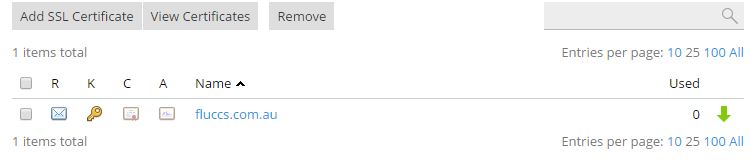
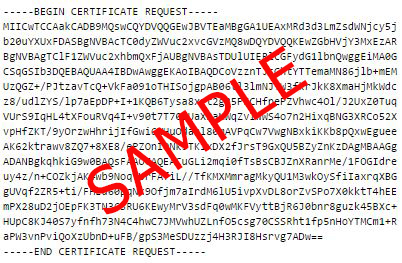
The CSR always start with "-----BEGIN CERTIFICATE REQUEST-----" and end with "-----END CERTIFICATE REQUEST-----":