- Go to https://acronis.fluccs.com.au/login
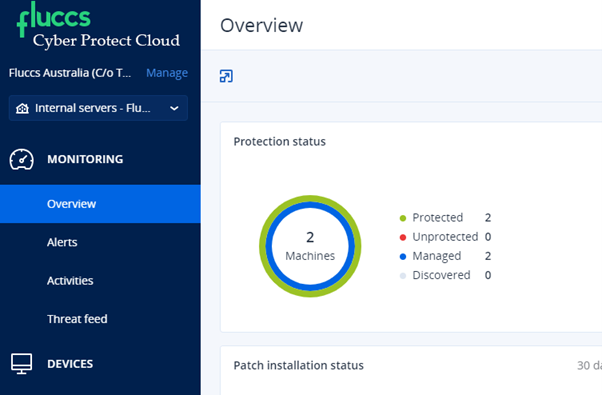
- Click on Devices:
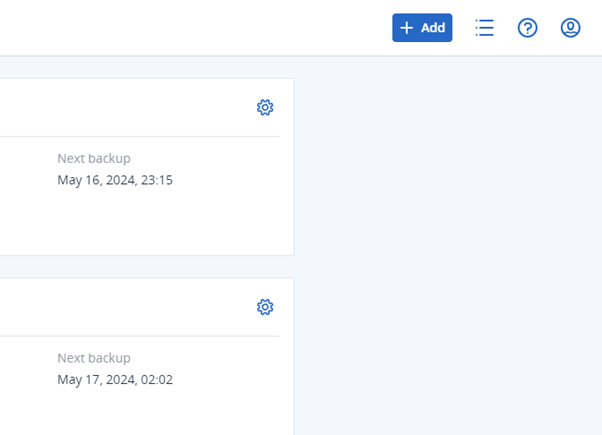
- Click on add (top right corner)
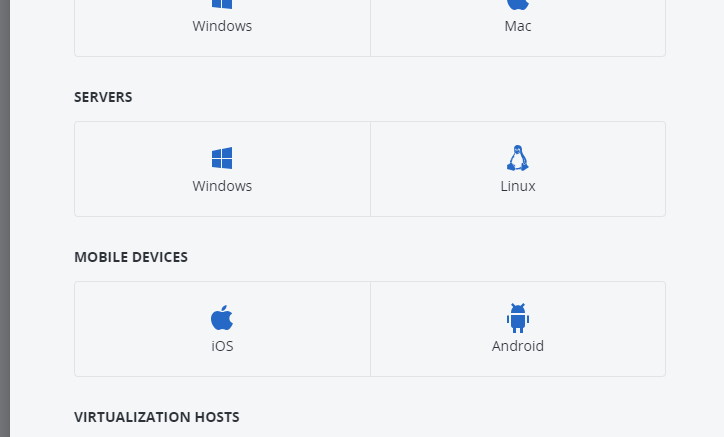
- Download the agent for Linux under Servers
- Once downloaded, you will need to upload it to the server using winscp, FTP or any other tool you're familiar with.
- Change the permission on the file to allow the execution: chmod +x FluccsCyberProtect_AgentForLinux_x86_64.bin
- Execute the file: ./FluccsCyberProtect_AgentForLinux_x86_64.bin
Note that the file name might be different, so make sure you edit the command before you run it - Follow the Installation process and it you'll have the option to Register the workload or to show the registration info
To register the workload you have 2 options:
1) You can click on "Register workload", which will provide a URL and a registration code.
Copy the URL and paste it into a browser, which will allow you to register the device.
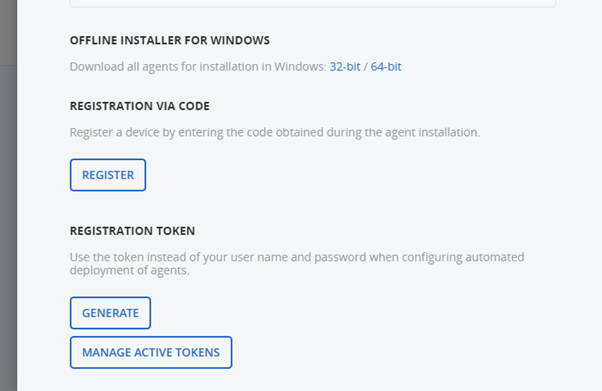
2) Click on "Add" again on the Acronis portal and scroll all the bottom then click "Register"